![checkin-logo-1.svg]](https://www.checkin.no/hubfs/checkin-logo-1.svg)
Go directly to…
Where can I find the attendee list?
Generate a report with custom information
Where can I find the attendee list?
To access the attendee report, you need to open the specific event it belongs to.
If the event has already ended, you will need to go to "past" events. You can find this on the event page, next to your list of active events.
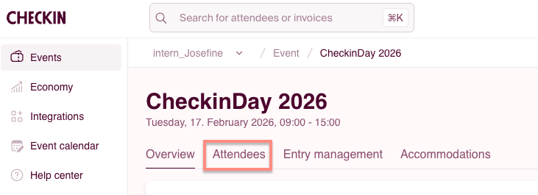
Inside the specific event, you can find the attendee list in the menu on top:
Orders
In the attendee list, you can search for the person you need to make changes for, or go directly to the order window by clicking on the booking number/order number. This number is sent to the attendee by email in the order confirmation once the purchase/booking is completed.
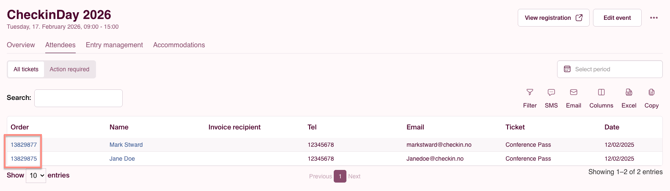
Click the order number to view the following details:
- Order contact – the person who placed the order on behalf of themselves or others
- Billing address
- Attendee information, including tickets and any additional options
- Payment information
- Registered transactions
- Invoice history
- Work log – shows who has made changes to the order
- Notes – used internally to document any changes or special circumstances
To see the separate article on how to manage orders, go here:
How to handle orders in Checkin?
Send SMS or Email
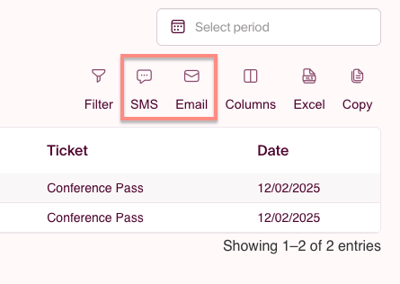
Click the "SMS" or "Email" icon on the right side of the attendee list. Read more in detail about how to use these features here: send SMS and emails from Checkin.
Generate a report with custom information
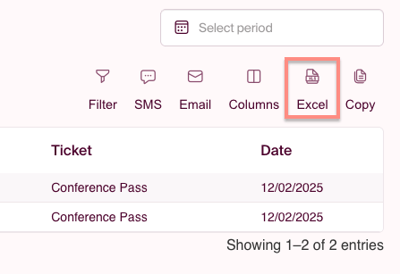
If you need to generate an Excel report with specific information for your event, you can go to the attendee list and use the filtering options to sort the list by the desired filters and columns before exporting the Excel file. When you click the Excel icon in the top right corner, the attendee data will automatically be downloaded as an Excel file.
Sorting options
Inside the attendee overview, you can sort the data in several different ways — by using columns, filters, and time filtering.
Columns
Using “Columns”, you can sort the attendee list based on the specific information you want to display in the report. Inside the column field, you can select various fields related to the buyer and the attendee. Add-ons and accommodation options cannot be selected in the columns. After selecting the desired columns, you can download an Excel file by clicking the Excel icon.

Filter
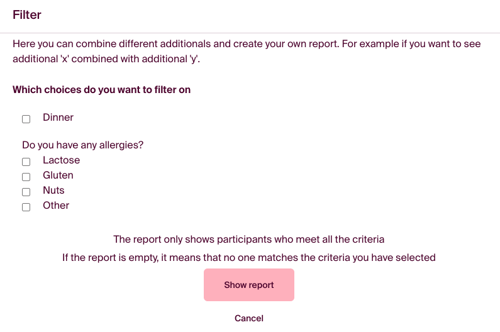
By clicking “Filter”, you can filter attendees based on the options and categories they selected during their registration. All add-ons will appear here, and you can apply multiple filters at the same time and combine them with the columns you want to display in the list.
Note: Orders missing any of the required filter selections will not appear in the list. If you want to view all additional options, you can use the full report.
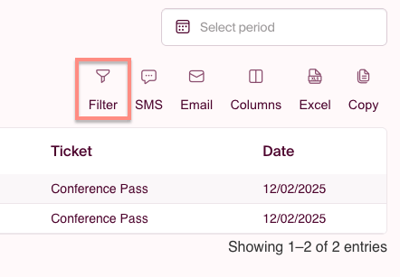
Select the desired filter and then click 'Show report'. The attendee list will display only the orders that contain all the additional options specified in the filter module.
Select period
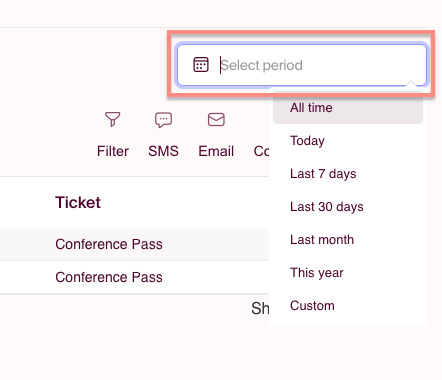
If you only want to view orders placed within a specific time period, you can use the 'Select period' sorting function. For example, choose 'Today' to display only the orders created today. You can also select a custom time range.
Note: We ask that you handle privacy carefully when downloading the files. Sharing participant information is the responsibility of the organizer, and we encourage caution.