Copying of event
If you are going to organize multiple similar events, you can now copy previous events.
How to copy an event
To copy an event, go to the overview of your events.

You can find the copy function all the way to the right on each row in the event overview.
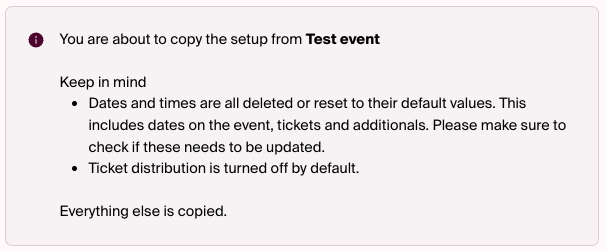
When you copy an event, all dates will be deleted or reset. All information listed under “General” in the setup must be updated before you save the copy.
- Update the information and click:
Note that dates on tickets and add-ons will also be reset, so if, for example, you have an early bird ticket with a limited date display, the dates must also be updated there.
Information under the “Ticket Delivery” step will be copied, but the function itself will be turned off. You will therefore need to enable it again to send tickets to your participants.
Finally, under the “Publishing” step—if you are using a landing page from Checkin—the event image must be uploaded again.