![checkin-logo-1.svg]](https://www.checkin.no/hubfs/checkin-logo-1.svg)
Course Certificate
If you want to send out course certificates to your participants, you must have activated the course module for your event. You can do this in the “Initial setup".
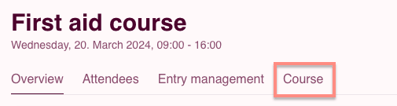
If you have activated “Is this a course” in the initial setup, you will find the “Course” module in the overview of the event.
Designing the Course Certificate
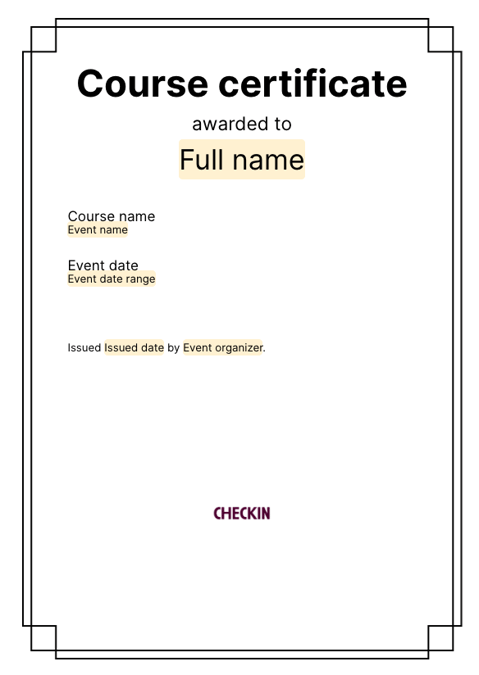
Go to the “Course Certificate” page. In the preview, you will be able to see how the certificate will look if you do not make any custom changes. The information is retrieved from the event setup, and the participants’ names are taken from the registration. The certificate is then sent as a PDF to the participant’s email address.
The certificate includes:
- Participant’s name
- Course name
- Date of completion
- Issuance date and organizer name
- Organizer’s logo (retrieved from the customer information if uploaded). If no image is uploaded, the organizer name will be placed at the bottom of the page.
If you want to make custom changes to the course certificate, go to “Customize.” Here you will have access to a range of customization options.
Logo
Under the “Logo” section, you can upload your own logo, which will appear at the bottom of the course certificate. The logo must be at least 300x300 pixels and uploaded in one of the following formats: PNG, GIF, JPG/JPEG, or BMP. Note that the logo cannot be moved and will have a fixed position. If you want it placed in a specific location, you can instead include it in the background image.
Background Image
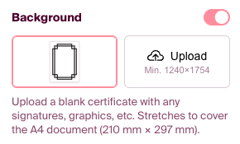
In the background image, you have great freedom to include any content you want to have on the course certificate. This may include colors or patterns, emblems, signatures, or anything else that represents the course. Click “Upload” to select an image from your computer. Please make sure you use the correct format and image size to ensure good quality.
Accepted Image Formats for the Background Image:
- PNG
- GIF
- JPG/JPEG
- BMP
Recommended Sizes for the Background Image:
- Absolute minimum: 595 × 842 (72 dpi)
- Recommended minimum: 1240 × 1754 (150 dpi)
- Recommended size: 2480 × 3508 (300 dpi)
If you already have a template in another format, you can save a copy without participant names, etc., and convert it to a PNG image. This can include images, signatures, etc. Remember to adjust the margins so that the content is positioned correctly. Convert your images here!
Spacing
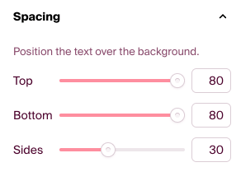
Once you have uploaded the desired background image, you can adjust the margins to fit it as best as possible. Make sure that the area where the participant’s name will be placed has enough space.
Use a Template from a Previous Course
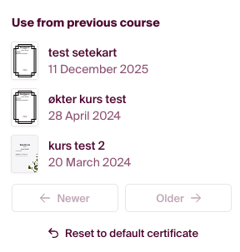
If you have previously sent out course certificates from the organizer account, you can use these as a template. Hover over the certificate you want to use as a template and click “Select” to choose it.
Additional Information
It is common to include extra information such as course codes or a summary of the course content (a description of the skills or knowledge gained). You can either add this directly as text on the course certificate or include it as part of the background you create.
Note! There is a fee of NOK 10, excluding VAT, for each course certificate issued.
Sending course certificates
Under this tab, you can choose whether to send certificates to all registered participants, only selected participants from the list, or set a requirement based on a percentage of attendance.
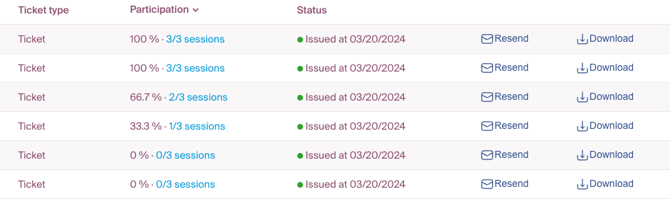
The course participants will appear in a list showing ticket type, level of participation (if sessions have been added and attendance recorded), and the status of the certificate delivery. You can resend the course certificate or download it if desired.